See How RouteBot Plans, Optimizes & Tracks School Transportation
Explore RouteBot's school transportation platform in a working dashboard with a sample fleet already loaded. This guide explains route generation, stop-order optimization, and the mobile workflows, so you know what to look for when you open the demo.
Opening it takes one click. A temporary sandbox account is created for you in the background; there's no form to fill in and nothing to install.
No signup required · Instant access · Sample data included
What You Get in the Live Demo
Opening the demo takes you to the real RouteBot dashboard, ready to explore.
- It's the actual product, not a video or a click-through mockup
- Sample data is already loaded: 1000+ passengers, plus routes, vehicles, and drivers
- Explore the dispatcher dashboard; this guide also shows the driver and parent screens in the companion app
- Your sandbox is private. You can keep it as a free account if you want
Prefer to Watch First?
Our founder walks through the same workflow on the live dashboard — route creation, passenger distribution, and optimization — in about ninety seconds.
The RouteBot Workflow, Step by Step
Follow the workflow from an existing spreadsheet to reviewed routes and live trip updates. Explore route planning with sample data in the web demo. The mobile steps show how drivers and parents use those routes during real operations. For your own roster, use the spreadsheet import or send us the file.
- 1
Import or add your students and passengers
Routing starts with people and accurate locations. An address can resolve to the wrong place, so check each map pin before planning routes. The Directory in your RouteBot dashboard holds drivers, students, parents, and employees. Upload an Excel or CSV student list using your existing columns, with no required template. RouteBot reads the people, addresses, and service details for you to review before saving. You can also add people individually and adjust their map pins. The address and map location stay in sync when you edit either one.
In the demo you can skip the upload and work with sample data. To try a real file, open the spreadsheet import. The Excel import page explains how files with different columns are read. If you would rather not upload it yourself, send the file to us and we will load it for you.

Importing a student list from Excel - 2
Create transportation routes automatically
Route generation creates several proposed routes from one passenger list. It uses the school or destination, passenger locations, and capacity settings to distribute students or employees across services. This reduces the work of assigning every passenger manually. You can also create routes individually. Optimizing the stop order within an existing route is a separate step, covered below.
Review the proposed route count, passenger groups, and capacity settings. Adjust assignments and stop orders for your operating needs before saving or approving the result. Processing time depends on the passenger list and routing-service responses. Route generation supports both school districts and employee shuttles, with settings suited to each operation.
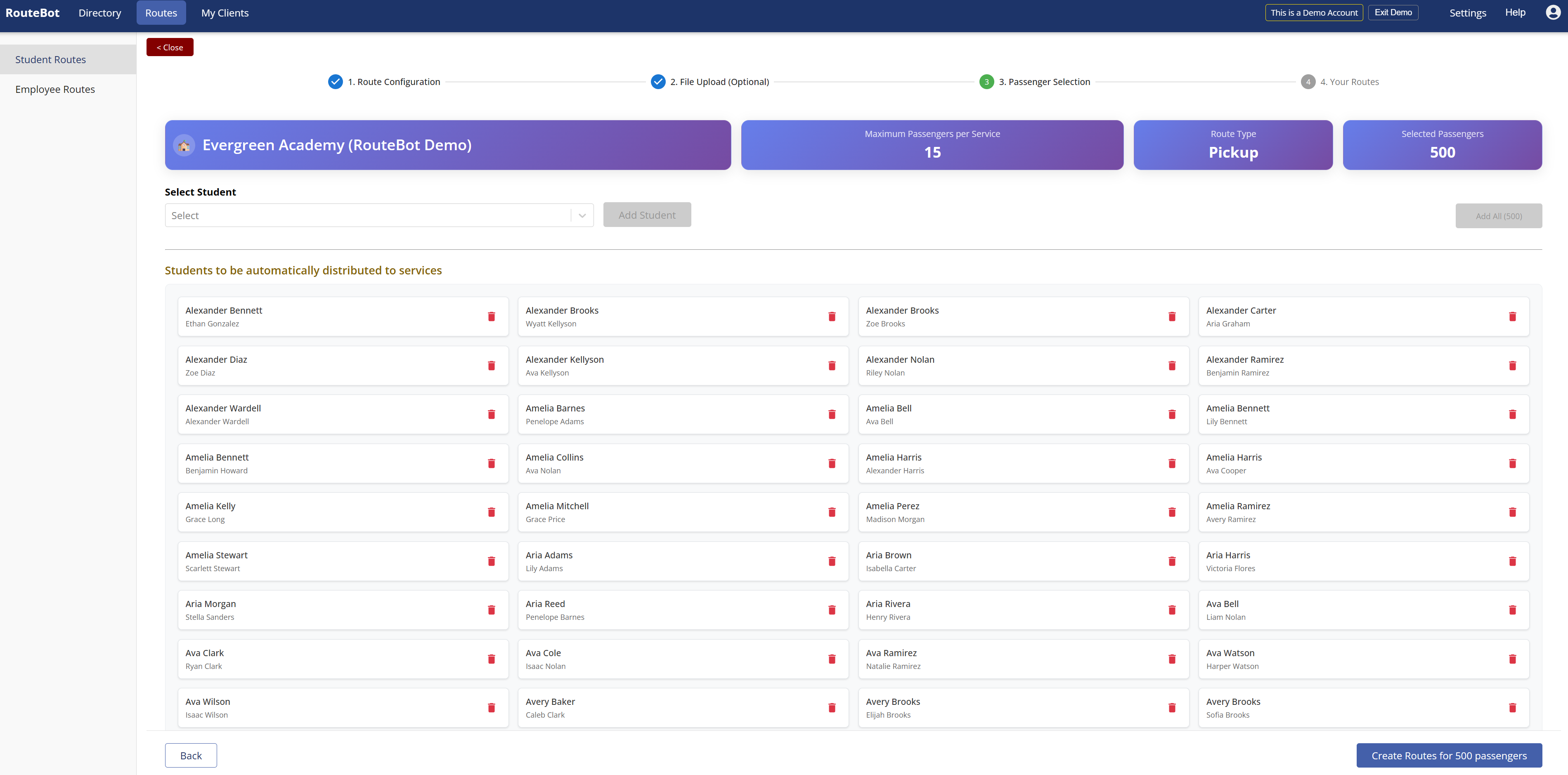
Distributing 500 students into routes automatically - 3
Optimize the route
Open an existing route and select Optimize Route. RouteBot uses road-based routing to improve the visit order of the stops already assigned to that route. It does not redistribute the full passenger list across vehicles. With a target time set, pickup times are calculated backward from arrival at the destination; drop-off times are calculated forward from departure. Review the estimated times, total distance, and duration before saving.
Check the proposed route against local access restrictions and your operating requirements. You can adjust the stop order before saving. The route optimization page explains how this differs from creating routes for a whole passenger list.

An optimized route with computed pickup times - 4
Review stops, vehicles, and drivers on the map
Use the map to review the proposed route and apply local knowledge, such as the corner where families wait or a street to avoid at 7 a.m. Reorder passengers, group nearby stops, or adjust a pickup time. Check the resulting route and schedule before saving your changes.
Assign the vehicle and drivers to the route. You can also create a corresponding drop-off route from a pickup route, then review its stop order and times. For details on managing vehicles and drivers, see fleet management.

Reviewing ordered stops and the route path on the map - 5
Run the route with the driver app
Drivers open the mobile app, select their assigned route, and start the trip. They see the stop order, passenger list, and configured pickup times. On school routes, drivers mark students who did not board. The action is saved and triggers enabled parent push alerts. Employees can record shuttle attendance by scanning the vehicle's QR code in the same app. If an unexpected passenger scans, the driver is alerted. Driver approval adds the passenger's location to the route, which can then be re-optimized. A school driver's post-trip QR scan is separate: the driver checks the cabin and scans the code at the rear inside the vehicle. The scan supports the physical check; it does not prove that the vehicle is empty.
During an active trip, the driver's device shares its GPS position for live vehicle tracking. A compatible phone can provide this without a separate vehicle tracking device.
RouteBot can also receive telemetry from a supported GPS device installed in the vehicle. The driver still starts the route in the app to manage trip progress and parent notifications.
Drivers can use a compatible phone, Android tablet, or supported Android in-vehicle terminal, such as the Telox M6G.
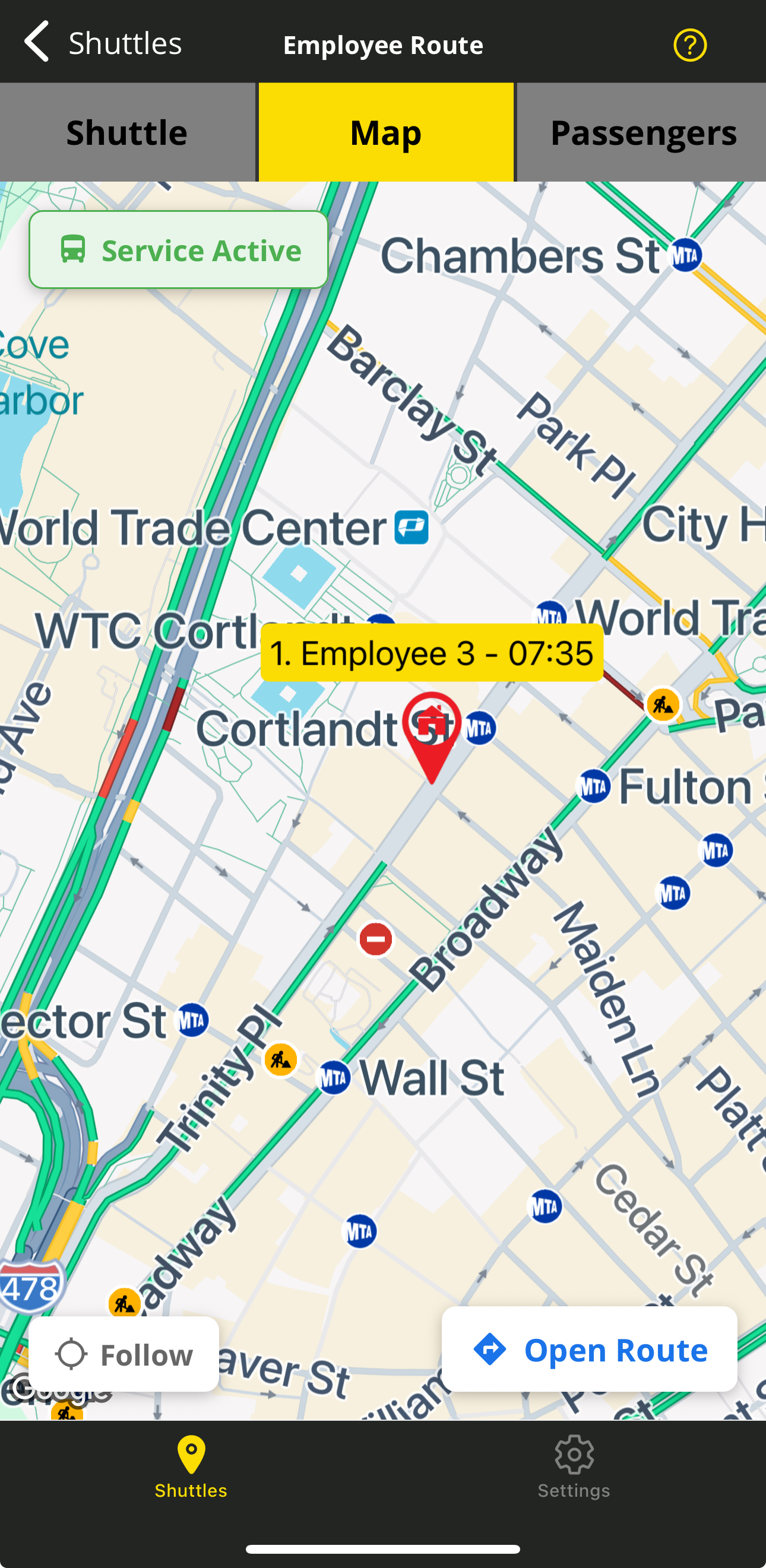
An active route in the driver app - 6
Track vehicles live and keep parents informed
Dispatchers use the Track Vehicle screen in the RouteBot dashboard to see live positions, replay recorded journeys, and review trip events such as arrival or a driver-recorded absence. Parents see their child's assigned vehicle, driver details, and configured stop and pickup time in the same mobile app, using their parent account.
Notifications use GPS for vehicle approach and school arrival. Departure and did-not-board alerts follow the driver's passenger-list actions. Trip push alerts and office SMS announcements are separate workflows.

Live vehicle tracking in the mobile app
Want the Full Feature Breakdown?
RouteBot also includes operational reports, employee shift management, and fleet records. Browse all features, or see how these tools support school transportation and employee shuttles.
The Demo Is Faster Than This Page
Reading about routing software is a poor substitute for running an optimization yourself. One click puts you in a private sandbox with students, vehicles, and routes already loaded. Nothing you do in there affects anyone else.
No signup required · Instant access · Sample data included